License
Aurono Start runs in two modes:
- Shadow mode - Aurono evaluates every strategy and records every decision, but never sends an order to your exchange. This is the unlimited, free trial. You can run shadow mode for as long as you want.
- Live mode - Aurono sends real orders to your exchange. A license is required.
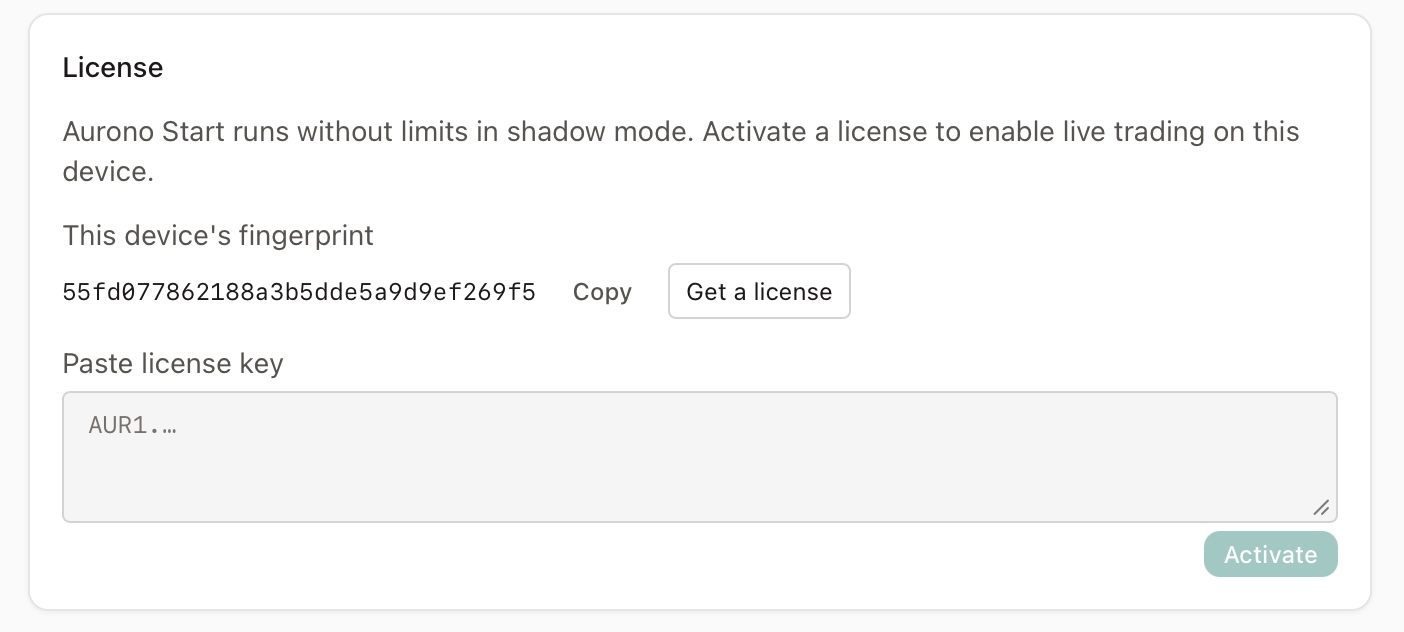
The License card in Settings is where you activate your device for live trading. Without a license, every feature still works except the “Go Live” toggle in Settings.
Why a License?
Section titled “Why a License?”Aurono Start is local-first software. There is no cloud account, no subscription, and no monthly recurring charge. Live mode is unlocked by a one-time license that’s tied to the device you install Aurono on. This is how we keep the project sustainable while preserving the “your data, your hardware, no phone-home” architecture.
Shadow mode runs forever without a license. That’s by design - we’d rather you spent weeks watching what Aurono would have done with your strategy before you commit real money.
Finding Your Device Fingerprint
Section titled “Finding Your Device Fingerprint”Every device has a unique 32-character fingerprint. Aurono needs it to issue a license bound to your specific install. The fingerprint is derived from local OS identifiers - it never leaves your machine on its own.
In Aurono → Settings → License, the fingerprint is shown directly below the explanatory text. It looks like:
9d9dbc3901fd7097797c57bb4ec1d677Click Copy to put it in your clipboard.
Getting a License
Section titled “Getting a License”Click Get a license in the License card. Aurono opens the activation page on auronolabs.com in your browser, with your device fingerprint already filled in.
On that page you:
- Enter the email address where your license should be sent, and the country you’re buying from (for EU OSS VAT).
- Optionally apply a €15 voucher, if a friend shared one with you.
- Pay the one-time €99 fee by SEPA bank transfer - scan the QR code with your banking app, or use the IBAN details shown below it.
Once your payment arrives, we email your license key - a single line starting with AUR1. followed by about 125 characters of base64 - usually within one working day. Each license also comes with three €15 vouchers to share.
Prefer to arrange it by email instead? Write to
license@auronolabs.comwith your fingerprint and the country you’re buying from, and we’ll take it from there.
Activating Your License
Section titled “Activating Your License”When the reply arrives, copy the entire AUR1.… line (no extra whitespace, no line breaks). In Aurono → Settings → License, paste it into Paste license key and click Activate.
The card flips to the Active state, showing:
- Tier (currently
software) - Issued date
- License ID (the last few characters are useful when contacting support)
- The fingerprint your license is bound to
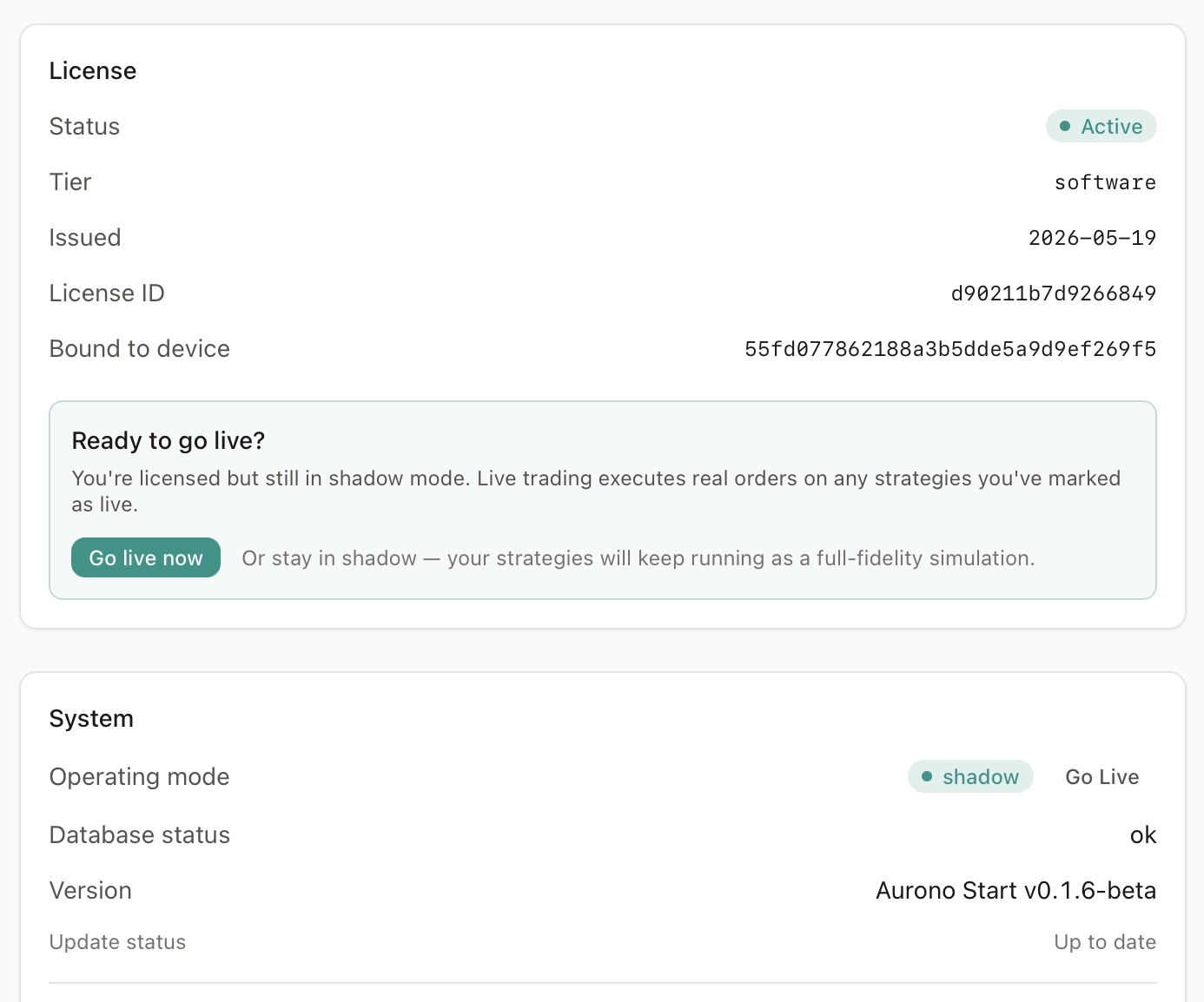
Below the claim details, a Ready to go live? panel appears with two options:
- Go live now - runs Aurono’s pre-flight checks (exchange connection, active strategies, allocated capital) and switches the system to live mode after you confirm. Any strategies that were active in shadow mode are automatically paused first, so you can review them and re-activate only the ones you want running live. They start submitting real orders on their next evaluation cycle after you re-activate them.
- Stay in shadow - the panel stays available indefinitely. Live trading is something you opt into when you’re ready, not something Aurono nags you about.
The Three Card States
Section titled “The Three Card States”The License card in Settings always shows one of three states:
| State | What it means | What to do |
|---|---|---|
| Active | A valid license is installed, bound to this device. | Nothing - you can toggle live mode whenever you’re ready. |
| Not activated | No license file is present on this device. Shadow mode runs unconditionally. | Either continue in shadow, or follow the activation flow above. |
| Rejected (inline error) | A license is on disk but doesn’t validate. The card shows why and keeps the textarea visible so you can paste a corrected token. | See the next section. |
When Activation Is Rejected
Section titled “When Activation Is Rejected”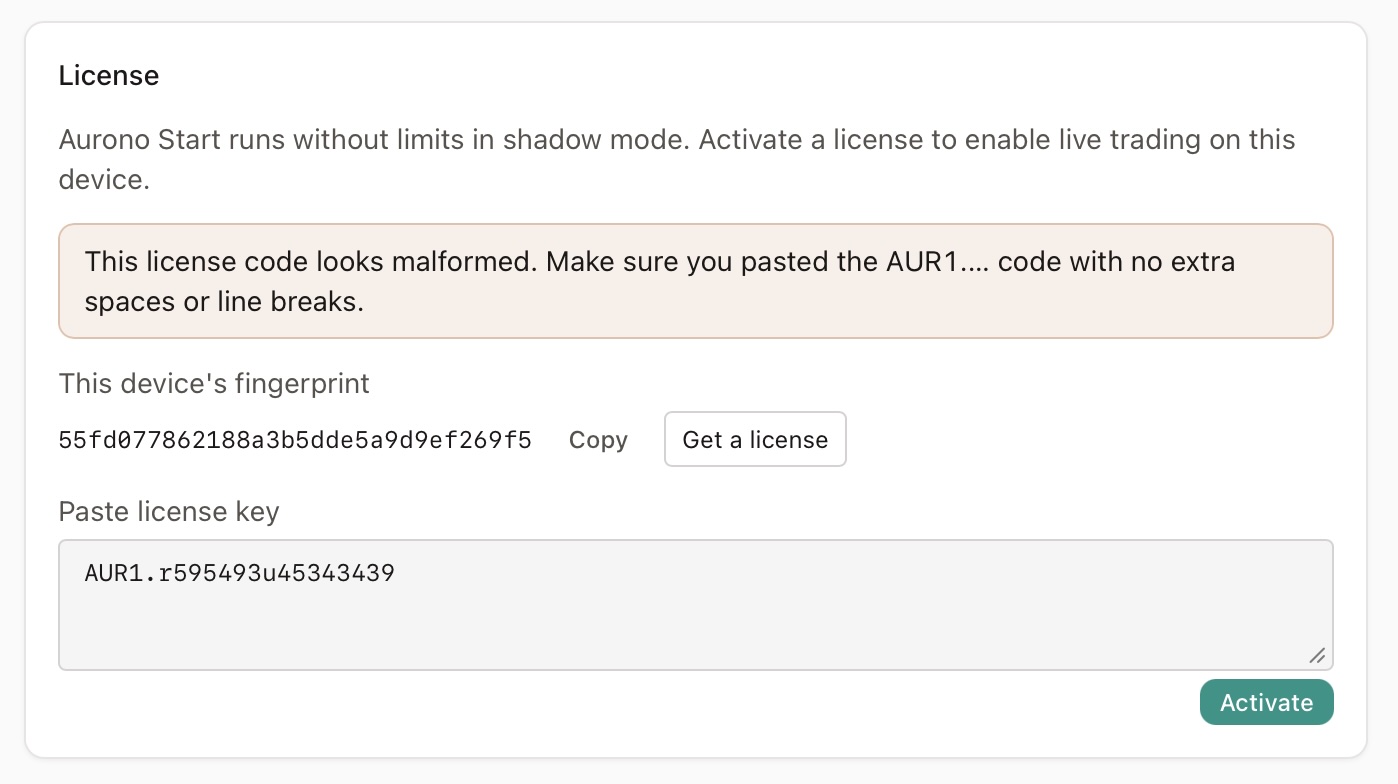
If the inline warning appears after pasting, the message tells you exactly what went wrong:
- “This license is for a different device” - the license was issued for a fingerprint that doesn’t match this machine. This happens if you reused a license from a different computer, or if your hardware changed (e.g. a Mac mini logic board replacement). Send us your new fingerprint and we’ll issue a fresh license.
- “This license code wasn’t recognised” - the signature on the license doesn’t match. Usually a copy-paste mistake. Double-check you copied the full
AUR1.…line from your email - including theAUR1.prefix. - “This license code looks malformed” - extra characters in the token (spaces, line breaks, an HTML wrapper from your email client). Re-copy by triple-clicking the line in your email.
- “This license code was issued for a newer version” - your Aurono Start is older than the version the license expects. Update Aurono Start first (Settings → System → Update status will show if an update is available), then retry activation.
Replacing Your Device
Section titled “Replacing Your Device”A license is bound to one device’s fingerprint. If you move Aurono to a different machine, the old license won’t activate on the new one - you’ll see the “different device” rejection.
To transfer:
- Install Aurono Start on the new device.
- Open Settings → License on the new device, copy the fingerprint.
- Email us at
license@auronolabs.comwith your old license ID and the new fingerprint. We’ll issue a fresh license. - Activate on the new device using the new license.
We don’t charge for transfers during the beta. If you decommission the old device, we mark the old license revoked in our records.
What “Live” Actually Means
Section titled “What “Live” Actually Means”Activating a license doesn’t make Aurono trade. The license unlocks the ability to switch to live mode. You still have to:
- Have an exchange connected (Settings → Exchanges).
- Have at least one strategy that’s marked active.
- Click Go Live in Settings → System, confirm the pre-flight check, and let Aurono know you’re ready.
From that point on, when a strategy’s rules fire on a closed candle, Aurono will submit a real limit order. You can switch back to shadow at any time - the toggle is reversible.
If you flip the operating mode to live but your license has gone invalid for any reason (revoked, hardware changed, file corrupted), the operating-mode badge in Settings will say shadow with a small “(license required)” hint. That’s Aurono telling you: the database row says live, but until the license validates, every evaluation cycle still uses shadow mode. No risk of accidental live trades when the gate is closed.
Privacy
Section titled “Privacy”Aurono never contacts our servers to verify your license. Verification happens entirely on your device using the Ed25519 public key shipped with every Aurono install. After activation, you can disconnect Aurono from the internet and it will continue to validate your license offline.
The only thing that ever leaves your device for licensing purposes is what you fill into the activation page when you buy - your email, country, and fingerprint, sent once when you choose to purchase. Nothing is sent automatically.
See also
Section titled “See also”- Settings - where the License card lives
- How Live Trading Works - what happens when you switch to live mode
- Security & Fund Safety - exchange API key handling and credential storage