Connecting an Exchange
Aurono connects to your exchange using API credentials with restricted permissions.
This allows Aurono to execute trades on your behalf without ever having custody of your funds.
On first setup, the Setup Wizard guides you through entering your API credentials. After that, you can manage exchange connections from Settings.
Where API Credentials Are Entered in Aurono
Section titled “Where API Credentials Are Entered in Aurono”All exchange credentials are stored locally and encrypted on the machine running Aurono.
On first setup, credentials are entered through the Setup Wizard (step 4). After setup, you can manage them via Aurono → Settings.
From this screen you can:
- Add new exchange credentials
- Remove existing credentials
- Test exchange connections
- Manage Coinbase credentials separately
Supported Exchanges
Section titled “Supported Exchanges”Aurono currently supports the following exchanges:
- Kraken
- Bitvavo
- Coinbase
Important Security Model
Section titled “Important Security Model”Aurono is execution-only:
- Aurono never calls withdrawal or transfer endpoints
- Aurono only uses market-data and order-execution endpoints
- Funds always remain on your exchange account
Where exchanges expose API permission scopes, Aurono validates permissions.
Where exchanges do not, Aurono still never performs withdrawals.
🐙 Kraken - Generating API Credentials
Section titled “🐙 Kraken - Generating API Credentials”-
Go to (depending on which mode on Kraken you use):
https://www.kraken.com/u/security/api or https://pro.kraken.com/app/settings/api
Log in with your Kraken credentials. -
Click Create API Key and fill in a name for the API Key.
-
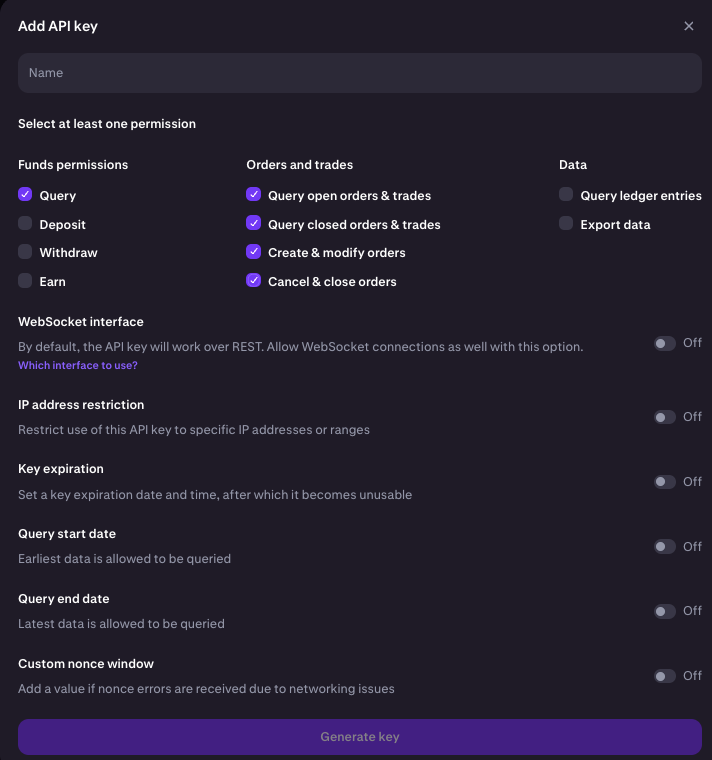
Enable Permissions ON:
- Query Funds
- Query open orders & trades
- Query closed orders & trades
- Create & modify orders
- Cancel & close orders
-
Ensure Permissions OFF:
- Withdraw Funds (very important)
-
Generate the key.
-
Copy the API Key and API Secret.
-
Paste both into:
Aurono → Settings
🇳🇱 Bitvavo - Generating API Credentials
Section titled “🇳🇱 Bitvavo - Generating API Credentials”-
Go to: https://account.bitvavo.com/user/api Log in with your Bitvavo credentials.
-
Click Add new API Key and fill in a name for the API Key.
-
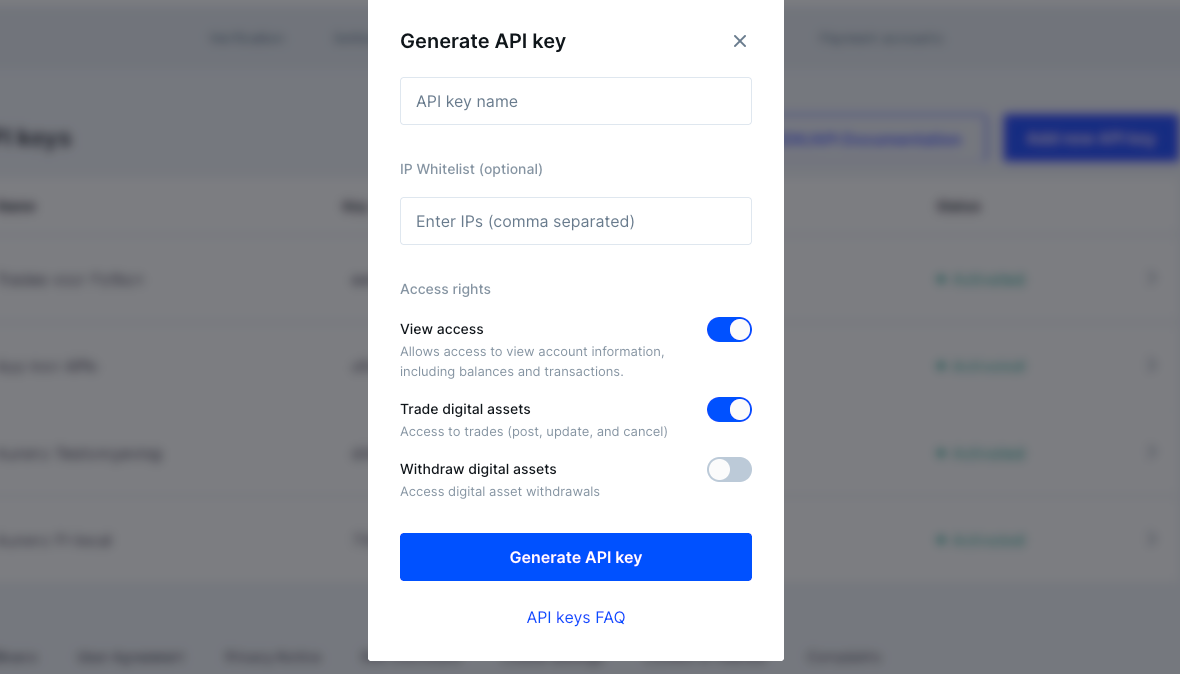
Enable:
- View access
- Trade digital assets
-
Disable:
- Withdraw digital assets
-
Generate the API key. You’ll need to confirm the generation of the API key by submitting your Bitvavo credentials and enable the API credentials by confirming via the email you’ll get
-
Copy the API Key and API Secret.
-
Paste both into:
Aurono → Settings
🧪 Coinbase - Generating API Credentials
Section titled “🧪 Coinbase - Generating API Credentials”-
Go to:
https://portal.cdp.coinbase.com/projects/
Log in with your Coinbase credentials. -
Click Create API Key.
-
Give the API key a name.
API Restrictions
Section titled “API Restrictions”- Select Primary (Standard) Portfolio
- Enable:
- Trade (execute trades on your behalf)
- Do not enable any other options.
Advanced Settings (Required)
Section titled “Advanced Settings (Required)”- Select ECDSA
(Required for Coinbase App & Advanced Trade SDKs)
Click Create.
Copying the Coinbase Private Key
Section titled “Copying the Coinbase Private Key”Coinbase provides:
- A Key Name (this is your API key)
- An ECDSA Private Key (PEM format)
Paste the private key into the PEM key field in Aurono → Settings exactly as Coinbase provides it. The key may contain literal \n characters - Aurono handles this automatically, no reformatting needed.
Example key format:
Section titled “Example key format:”-----BEGIN EC PRIVATE KEY-----SomeRandomNumbersandLettersandCharactersYesThatIsAndAn0th3rL1ineofNumbersandlettersandCharsThirdLineofNumbersandletters==-----END EC PRIVATE KEY-----Both formats work - whether the key has real line breaks or \n characters.
Verifying the Connection
Section titled “Verifying the Connection”During first setup, the Setup Wizard verifies your connection and shows your exchange balances immediately after entering credentials.
After setup, you can test connections at any time from Settings:
- No authentication or permission errors should appear
- Market data should load
- Balances should be visible
- At the strategies page, you can select your linked exchange when adding a new strategy
Aurono will not trade until a strategy is active.
Security & Control
Section titled “Security & Control”- Use one API key per Aurono install
- Revoke keys at any time from the exchange
- Revoking keys immediately stops all trading
- Stopping the Aurono service (or shutting down the host) stops execution instantly