Accessing the Dashboard
The Aurono dashboard is the local interface used to configure strategies, connect exchanges, and monitor activity.
This page explains how to access it and what to expect when it loads.
What the Dashboard Is
Section titled “What the Dashboard Is”The dashboard runs locally on the machine running Aurono.
- It is accessed through your browser
- It is only reachable from your local network
- When accessed from another device on the network (e.g. your laptop while Aurono runs on a Pi), it requires a one-time access key on first open — see below
No data is hosted in the cloud.
How to Access the Dashboard
Section titled “How to Access the Dashboard”From a computer or tablet connected to the same network as Aurono:
- Open a modern browser (Chrome, Safari, Firefox, Edge).
- Enter the dashboard address printed at the end of the install script.
Common addresses:
http://localhost:8420/- if you’re on the same machine that’s running Auronohttp://<your-mac-hostname>.local:8420/- from another device on your LAN. Replace<your-mac-hostname>with what’s in System Settings → General → About → Name on the Mac running Aurono (typical defaults look likeeppos-macbook.localormac-mini.local)http://<your-pi-hostname>.local:8420/- for a Pi host. The hostname defaults toraspberrypi(sohttp://raspberrypi.local:8420/) unless you changed it when flashing the SD cardhttp://192.168.x.x:8420/- the host’s LAN IP, if.localdoesn’t resolve on your network. Find it on your router’s admin page
Press Enter.
If the dashboard loads, access is working correctly.
Access Key
Section titled “Access Key”When you open the dashboard from a different device on the same network (for example, from your laptop while Aurono runs on a Pi), Aurono asks for an access key the first time you open it in that browser.
The key is:
- Created automatically when Aurono is installed
- Printed at the end of the install script, right below the dashboard URL
- Remembered by your browser once you paste it in — you won’t be asked again on that browser
If you need to retrieve it later, SSH into the Pi and run:
sudo grep AURONO_API_KEY /etc/aurono/aurono.envPaste the value after the = into the browser prompt.
Opening the dashboard on localhost (on the same machine running Aurono) never requires the access key.
Upgrading from an older version? If you installed Aurono before access keys were introduced, your browser may have cached the dashboard without the key prompt. Clear your browser cache for the dashboard address (or open it in a private/incognito window), then reload — the key prompt will appear.
Pairing a phone or tablet
Section titled “Pairing a phone or tablet”Once the dashboard is open and unlocked on one browser, you can add other devices without typing the key:
- Open Settings in Aurono.
- Go to Pair a device.
- Scan the QR code that appears with your phone (or any device on the same network).
The scanned device opens the dashboard immediately, already trusted.
First Load Expectations
Section titled “First Load Expectations”Fresh installs open straight to the Dashboard. A shadow mode banner appears at the top, pointing you to the right next step depending on what’s still missing (connect an exchange, or activate a license once you’re ready to trade live).
If you’d prefer a guided walkthrough, click “Walk me through setup” on the Dashboard or Strategies page. This launches the Setup Wizard, which takes you through connecting an exchange and creating your first strategy step by step.
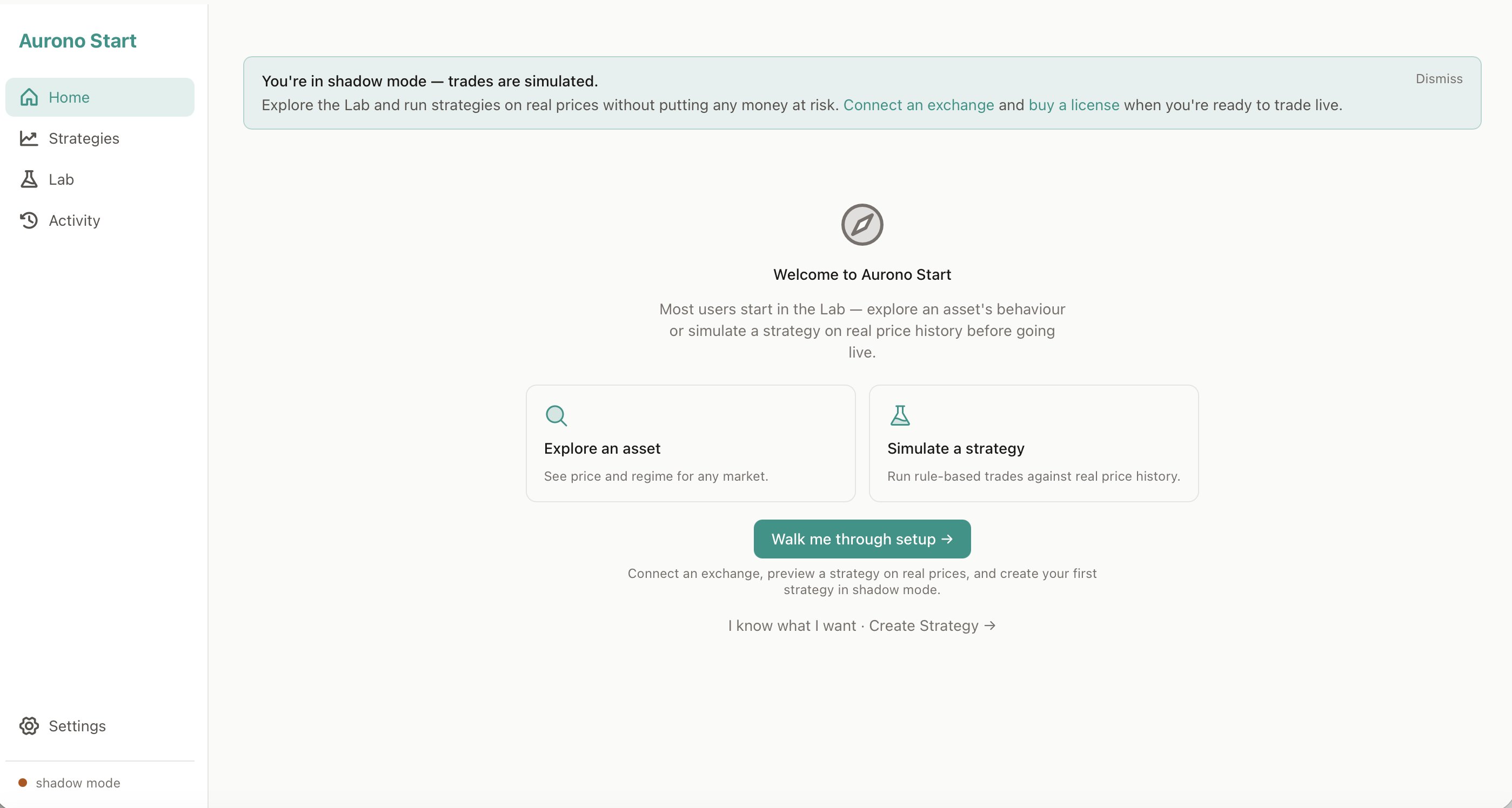
Shadow mode is fully functional without completing any of these steps: you can explore the Lab, create strategies, and run simulations straight away.
If the Dashboard Does Not Load
Section titled “If the Dashboard Does Not Load”If the dashboard does not load:
- Confirm Aurono is powered on
- Check your router’s device list.
- Find ‘aurono’ or ‘raspberrypi’. If it doesn’t show, Aurono is not connected to your local network. Check if your Ethernet is properly connected and the led indicators are flashing.
- Note its IP address in from your router’s device list and go to
http://<aurono ip address>.local:8420/
If problems persist, continue to Troubleshooting.
Mobile Access
Section titled “Mobile Access”The Aurono dashboard is fully responsive and works on your phone or tablet.
On mobile devices:
- Navigation moves to a bottom bar for easy thumb access
- Tables adapt to show essential columns
- All features remain accessible
The easiest way to open Aurono on your phone is to use Pair a device (Settings → Pair a device) from a browser that’s already unlocked: scan the QR code and you’re in. Alternatively, open the dashboard URL manually in your phone’s browser while on the same network and paste the access key when prompted.
Security Notes
Section titled “Security Notes”- The dashboard is not exposed to the internet
- No port forwarding is required
- Access is local only
- Network access is protected by a one-time access key (automatically set up during install)
- Stopping the Aurono service (or shutting down the host) immediately disables the dashboard
- Bought the pre-built Aurono Device? The SSH password is the same on every unit we ship. Change it any time: SSH in and run
passwd.
Next Step
Section titled “Next Step”Once you can access the dashboard, continue with:
Connecting an Exchange
/getting-started/connect-an-exchange